Viewing TIF Email Attachments
Most versions of Microsoft Windows come with a
built-in TIF viewer which should be adequate to view multi-page tiff.
This viewer can be different for the different versions of Microsoft
Windows. Below we have described the differences based on the version of
Microsoft Windows you are running.
Windows 98/ME/NT4/2000 all come with the Kodak Image Viewer (under
Programs->Accessories->Imaging). This viewer has two arrow buttons on the
toolbar that control paging when viewing a multi-page TIFF.
Windows XP comes with the Windows Picture and Fax Viewer (this should be the
default preview application when you open a TIF file, if not you can right
click on the TIF file under Windows Explorer and click Open With to select this
application). It has two arrows in the center of the bottom toolbar that
control paging when viewing a multi-page TIFF (note there are also two arrows
on the far left of the bottom toolbar -- these are not the pagination buttons).
If for some reason a different program is launching when you open a VFM TIF
file, you have installed an application which has changed the file type
association for TIF files on your computer. Follow the manufacturer’s
instructions for this application to view all pages of a multiple page TIF.
If this application is not capable of displaying multi-page TIFs, you
will need to restore the original TIF viewer for your version of Windows.
How do I restore the original
Windows XP TIF Viewer?
If you want to restore the original Window XP TIF Viewer, follow these
steps:
1. From your windows desktop, click the Start button and then click
Control Panel.
2. From the Control Panel, double click on Folder Options.
3. Click on the File Types tab and then scroll down until you find the
TIF extension.
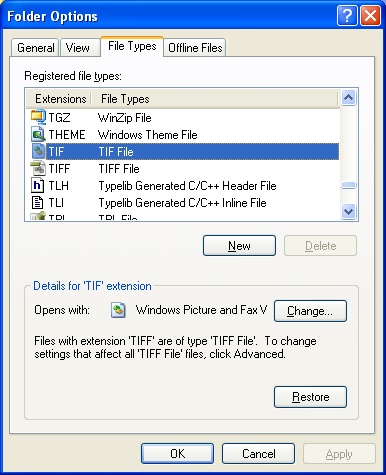
4. Click on the line containing the TIF extension and then click on the
Change button.
5. The Open With window will now appear. Click on on Windows
Picture and Fax Viewer and then click OK.
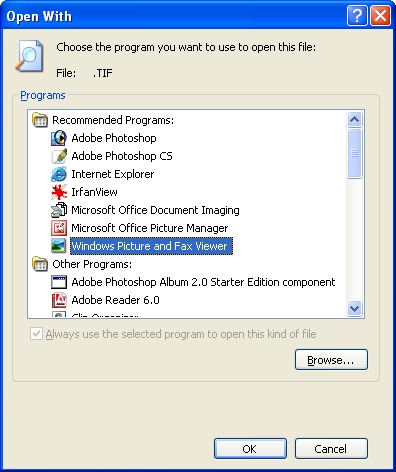
6. You will be back at the Folder Options window. Click on the
Close button and you are finished.
When you open a fax attachment now you should be able to see all of the pages
in the document.